---
title: "How to display image galleries with thumbnail navigation in Drupal"
description: "Need better image galleries in Drupal? The Media Scroller module adds a large main image, synced thumbnail navigation, and simple configuration without custom templates."
url: https://www.specbee.com/blogs/drupal-image-gallery-thumbnail-navigation
type: Article
author: "Chaitanya R Dessai"
categories: "Drupal Talk"
published: 2026-10-13
updated: 2026-10-13
---
# How to display image galleries with thumbnail navigation in Drupal
Every image field formatter that ships with Drupal core handles a multi-value image field the same way. You get a grid or a plain list. At best, you get core’s own unstyled slideshow.
Product pages and portfolios often need a better way to browse multiple images, with thumbnail navigation that makes it easy to move between them. [Media Scroller](https://www.drupal.org/project/media_scroller) is a simple module we built for that gap. In this blog, we’ll discuss what it is, how to install and configure it, and when it belongs in your build.
*A three item media field rendered by Media Scroller: main slide with arrows, dots and the synced thumbnail rail.*
**Key Takeaways**
- Media Scroller is a contributed Drupal module with one field formatter, `media_scroller_field_formatter`, for multi-value image fields.
- It shows a large main slide with a thumbnail strip underneath that stays in sync with it. It is built on the Slick carousel library.
- It works with core image fields. It also works with media reference fields that point to Image media using `field_media_image`.
- You set it up entirely from Manage Display. No template overrides are needed.
- It requires Drupal 10.3+ or 11, the core Image module, the [Slick contrib module](https://www.drupal.org/project/slick), and the Slick JS/CSS library in `libraries/`.
## What is the Media Scroller module?
Structurally, Media Scroller is one thing: a field formatter plugin called `media_scroller_field_formatter`. It attaches to two kinds of fields:
- **Image fields**: core’s image field type, used directly.
- **Media reference fields**: any `entity_reference` field that targets the media entity type. The referenced media has to use the Image bundle with its default `field_media_image` field.
The second case is worth a closer look. It’s the one people usually reach for on modern Drupal builds, where content is modeled through the Media Library rather than raw file fields.
The formatter’s `isApplicable()` check is deliberately narrow here. It doesn’t try to guess at arbitrary media bundles. It looks for a real image underneath.
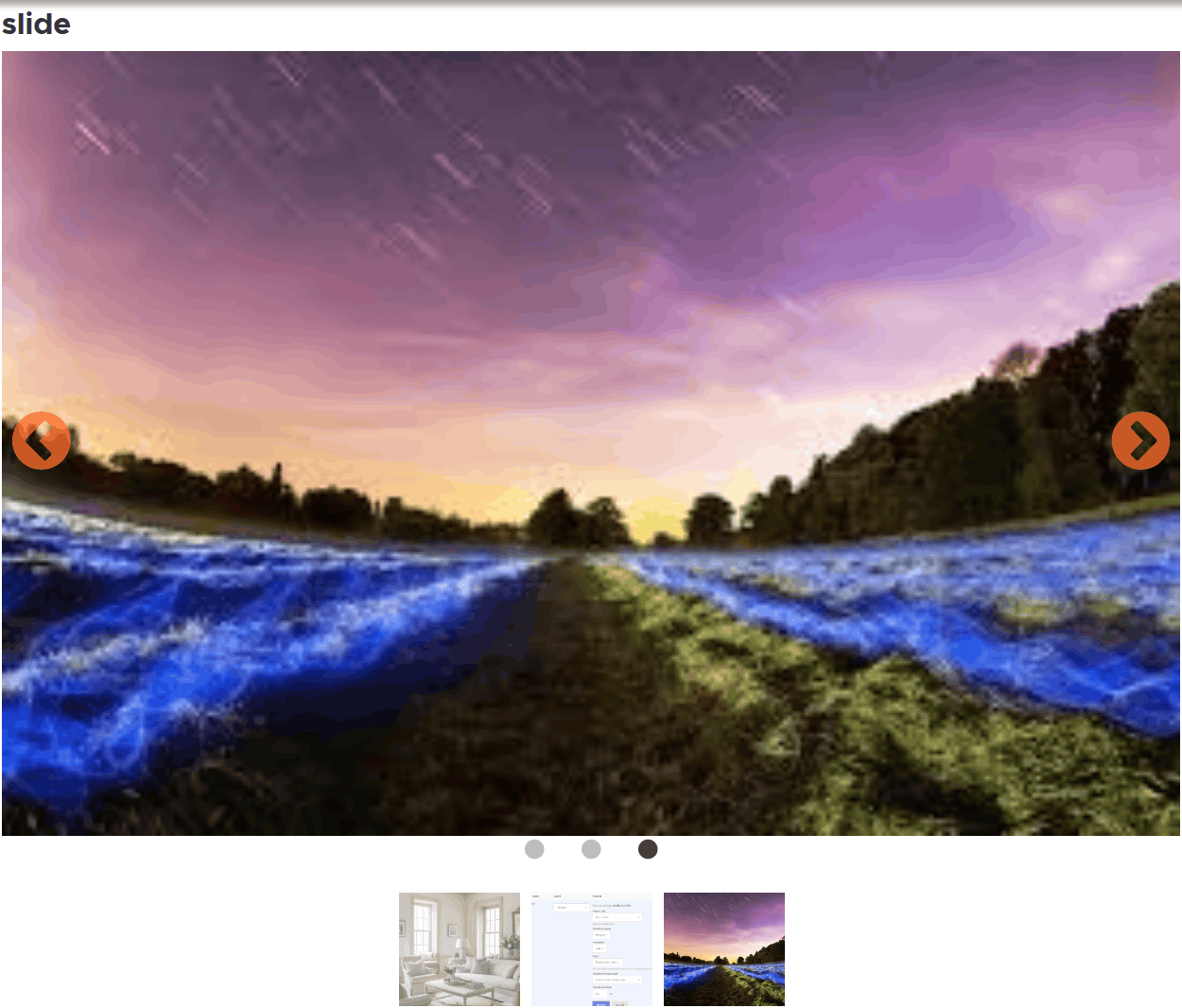*Clicking the third thumbnail moves the main slide and the active dot together.*
## How does Media Scroller keep the slider and thumbnails in sync?
Everything the formatter renders goes through a single Twig template, `media-scroller.html.twig`. It lays out a main `.media_scroller-slider` and, when enabled, a `.media_scroller-nav` thumbnail strip.
A behavior in `media-scroller.js` then starts Slick on both. It also adds an afterChange listener. When you scrub through the main slide, the thumbnail strip moves to match. When you click a thumbnail, the main slide jumps to it.
## How do you install Media Scroller?
Media Scroller depends on two things. The Slick contrib module handles the Drupal side. The actual Slick JS/CSS library has to exist under `libraries/`.
Composer only reads the `repositories` key from your project’s own root `composer.json`, never from a dependency’s. So installing a module can’t quietly pull in a raw JS library behind the scenes. That’s why the library gets its own step below.
### Step 1: Download the module with Composer
From your project root, run:
```plaintext
composer require drupal/media_scroller
```
### Step 2: Enable the module
```plaintext
drush en media_scroller -y
```
### Step 3: Add the Slick JS/CSS library
Pick one of these two options:
- **Manual download**: Download the Slick release by hand and place it at `web/libraries/slick/slick/`, so that `slick.min.js` and `slick.css` resolve there.
- **Composer**: Add a package repository for it in your own project’s `composer.json` and run composer require `components/slick:^1.8.1. composer/installers` then place it automatically.
### Step 4: Select the formatter in Manage Display
Open Manage Display for your content type and choose Media Scroller as the formatter for your image or media field. Its settings appear inline, covered in the next section.
### Step 5: Check that the slider loads
View a node with several images. You should see a main slide, plus whichever pager you turned on. If you only see plain images, the library is the usual culprit.
### Why does the slider show plain images with no arrows or thumbnails?
The missing library is almost always the cause. You’ll see a wrapper full of plain `![]() ` tags with no slider applied, and the arrows and thumbnails won’t respond to clicks.
The JS behavior checks for `$.fn.slick` and simply exits if the library isn’t loaded. The failure is silent, so nothing shows up in the log.
## What settings can you configure in Manage Display?
Once you select Media Scroller on a field in Manage Display, its settings appear inline. There’s no separate config form or entity.
*Media Scroller selected on a media reference field, with its settings summary in the Manage display row.*
- **Image style**: Applied to the main slide. Leave it empty to show the original, unprocessed image. This helps when slides mix portrait and landscape and shouldn’t all be cropped to one shape.
- **Transition speed**: Slow, Medium, or Fast, which map to 800ms, 400ms, and 200ms. Medium is the default and matches the formatter’s original hardcoded speed, so upgrading doesn’t change existing displays.
- **Animation**: Slide or Fade. Fade swaps Slick’s easing curve for a linear one, since `cssEase` only applies to the slide transition.
- **Pager (Thumbnails, Dots, Arrows)**: Three separate checkboxes rather than a single choice. Turn on any one, any combination, or none at all.
- **Thumbnail image style and height**: Shown only once Thumbnails is checked (via `#states`). By default, it reuses the main image style. Set a different one if you want a cropped, uniform strip under a main slide whose proportions vary.
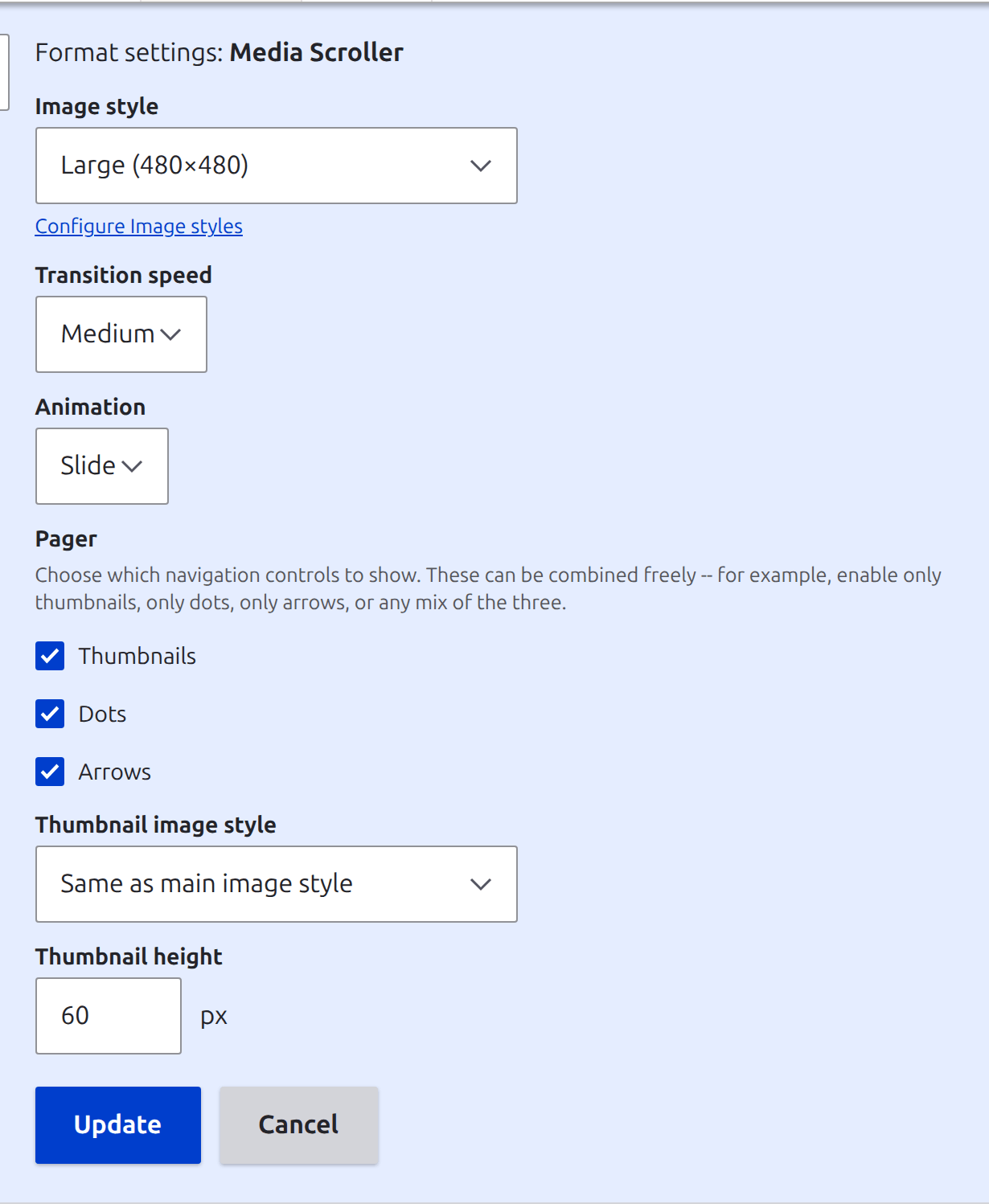*The formatter's inline settings form, with all three pager controls enabled.*
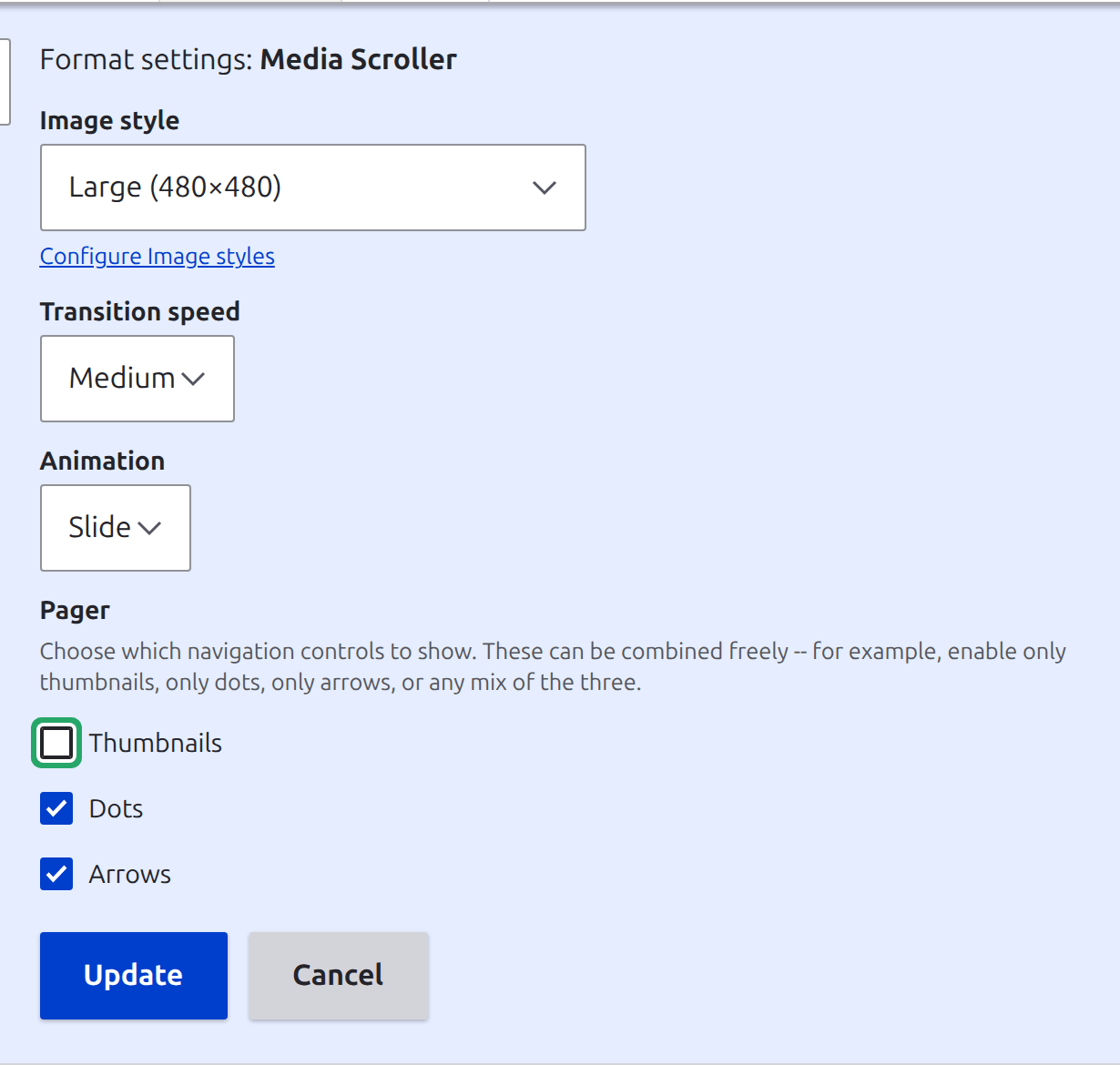*Unchecking Thumbnails hides the thumbnail style and height fields immediately, via #states.*
### Does Media Scroller force a fixed aspect ratio?
No, and that’s on purpose. The main slider doesn’t crop or force a fixed ratio by itself. Each slide shows at whatever proportions its chosen image style produces.
Slick’s `adaptiveHeight` option resizes the container to match as the active slide changes. So portrait and landscape images can share one field without one squashing the other.
If you want a uniform frame, set it in the image style itself, not in the formatter.
## How is Media Scroller built under the hood?
**Layer****Responsibility**`MediaScrollerFieldFormatter`Gets file URIs from either file or media entities, builds the main and thumbnail URL arrays, and passes settings to the theme layer.`media_scroller.html.twig`Renders the wrapper with data-scroller-\* attributes that the JS reads at attach time. There’s no inline `