
Building an interactive event calendar in Drupal 10 using the FullCalendar View module

Managing events on a website often starts simple, but soon you realize a basic list doesn’t cut it. Users want to see what’s coming up, not read through endless entries. A well-designed calendar makes that possible.
The FullCalendar View module brings that experience to Drupal 10. It turns your date-based content like events, bookings, training sessions, and editorial schedules into an interactive, polished calendar powered by Views.
In this blog, I’ll walk you through how to set up the FullCalendar View module in Drupal 10, configure a calendar using Views, and customize its behavior.
🎧 Listen to the audio version of this guide
The referenced media source is missing and needs to be re-embedded.
What is FullCalendar View?
FullCalendar is a popular JavaScript library that provides:
- Month, Week, Day, and List navigation
- Drag-and-drop interactions
- Clickable events
- Fully responsive UI
- Customizable colors and themes
The FullCalendar View module integrates this JavaScript library with Drupal Views, allowing you to visually render event-based content without custom coding.
Creating the Event content type
Before building your calendar, you need a content type that stores your event information.
Create a new content type
Navigate to:
Structure → Content types → Add content type
Name it “Event” (or anything relevant). Add a description if it helps your editors.
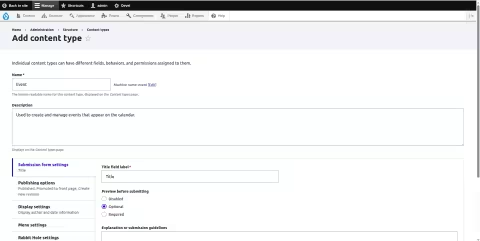
Add a Date & Time field
Step 1: Go to Manage Fields
Structure → Content types → Event → Manage fields
Step 2: Add a new field
Click: Add field
- Field type: Date
- Field label: Event Date and Time
Step 3: Configure the field
Set:
- Date type: Date and time
- Required: Yes (optional)
Save the field settings.
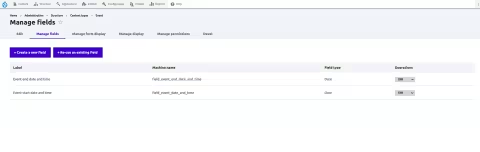
Installing the FullCalendar View module
Install via Composer:
composer require drupal/fullcalendar_viewEnable it:
drush en fullcalendar_view -y or Enable via UI :
Extend → FullCalendar View → Enable
Creating a Calendar View
Now that your content type and date field are ready, let’s build the calendar.
Add a new View
Go to:
Structure → Views → Add View
Settings:
- Show: Content
- Type: Event
- Display format: FullCalendar
- Page: Enabled
Click Save and edit.
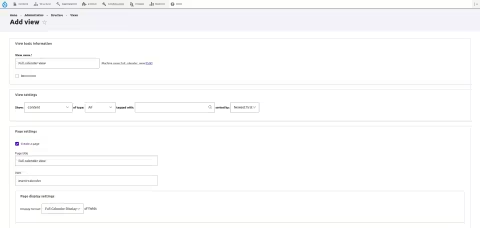
Configure the FullCalendar display
Inside the View:
Choose the correct fields
In the View settings, map your fields
- Calendar ParameterField to UseEvent TitleTitleStart DateEvent Date and TimeEnd DateEvent Date and Time (if using ranges)Image
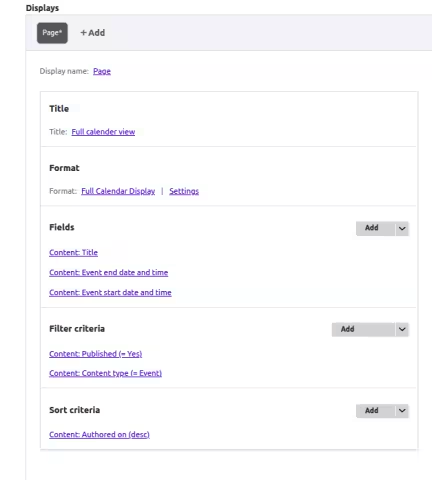
Key FullCalendar Options to Adjust
- Initial view: Month / Week / Day / List
- Event color
- Header toolbar (next, prev, today buttons)
- Time range
- First day of the week
Image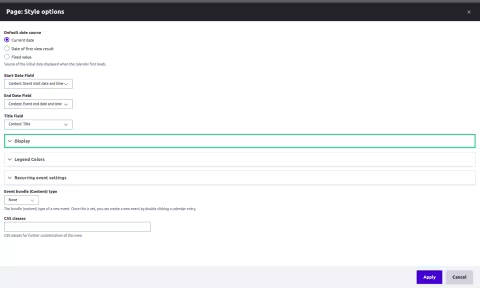
Click Save when done.
Your calendar page should now display your Event items on the correct dates!
Image
Front-End customization
Front-end customization allows you to adjust the appearance and behavior of the calendar to match your site’s design and functionality needs. You can modify styles to control colors, spacing, and layout. Template overrides can be used to change the HTML structure generated by the calendar. JavaScript customization enables you to enhance interactions such as clicks, hovers, or other event-driven behaviors. All these adjustments help create a calendar that aligns visually with your theme and provides a smooth user experience.
Common issues & fixes
Issue: Events not appearing?
What to check for:
- Wrong date field selected
- No content created
- Timezone mismatch
Issue: Calendar empty after theming?
What to check for:
- Clear cache
- Check library attachments
- Inspect the DOM for classes
Issue: JS not working?
What to check for:
- Missing once() wrapper
- Library not attached properly
- Conflicting scripts in theme
Final thoughts
The FullCalendar View module provides a clean and interactive way to display events in Drupal 10. With just a few steps, you can turn a simple date field into a fully dynamic calendar interface.
You also gain full control over:
- Layout
- Colors and styling
- Template overrides
- JavaScript interactions
From a corporate site to an educational platform, or an internal dashboard, FullCalendar helps create an intuitive event browsing experience.
If you’d like help integrating this module or building custom event functionality that fits your exact workflow, our Drupal development services team can help you get there faster and smarter.
Last updated on July 31, 2026
About the author
Ranjith Kumar M
Meet Ranjith Kumar M, a Front-end developer at Specbee, who’s happiest when solving problems and making interfaces feel effortless. When he’s working, you’ll often catch him quietly talking to himself while debugging. It’s his secret productivity hack, along with a personal list of shortcuts he’s been curating over time. Outside of work, he is either watching movies, trekking up a hill station, or dreaming of Switzerland. A movie buff and puzzle-solver, Ranjith brings creativity and curiosity to everything he does.

Getting started with Drupal Canvas: A frontend developer's first look
Wondering why Drupal needs another page builder? Here's what I learned installing Drupal Canvas, exposing my SDCs, and writing React right in the browser.
12 min read


Canvas Page Metatag Module: How to restore full SEO controls to Drupal Canvas pages
Drupal Canvas hides most Metatag fields behind one SEO title box. Check out how Canvas Page Metatag restores them and fixes a Robots checkbox bug.
11 min read


Specbee is now a Drupal AI Initiative Partner. What does it mean for your platform?
Specbee has joined the Drupal AI Initiative as a Certified Partner. See what Drupal AI initiative is about, how it's governed, and what it means for your enterprise site.
5 min read