
How to display image galleries with thumbnail navigation in Drupal

Every image field formatter that ships with Drupal core handles a multi-value image field the same way. You get a grid or a plain list. At best, you get core’s own unstyled slideshow.
Product pages and portfolios often need a better way to browse multiple images, with thumbnail navigation that makes it easy to move between them. Media Scroller is a simple module we built for that gap. In this blog, we’ll discuss what it is, how to install and configure it, and when it belongs in your build.
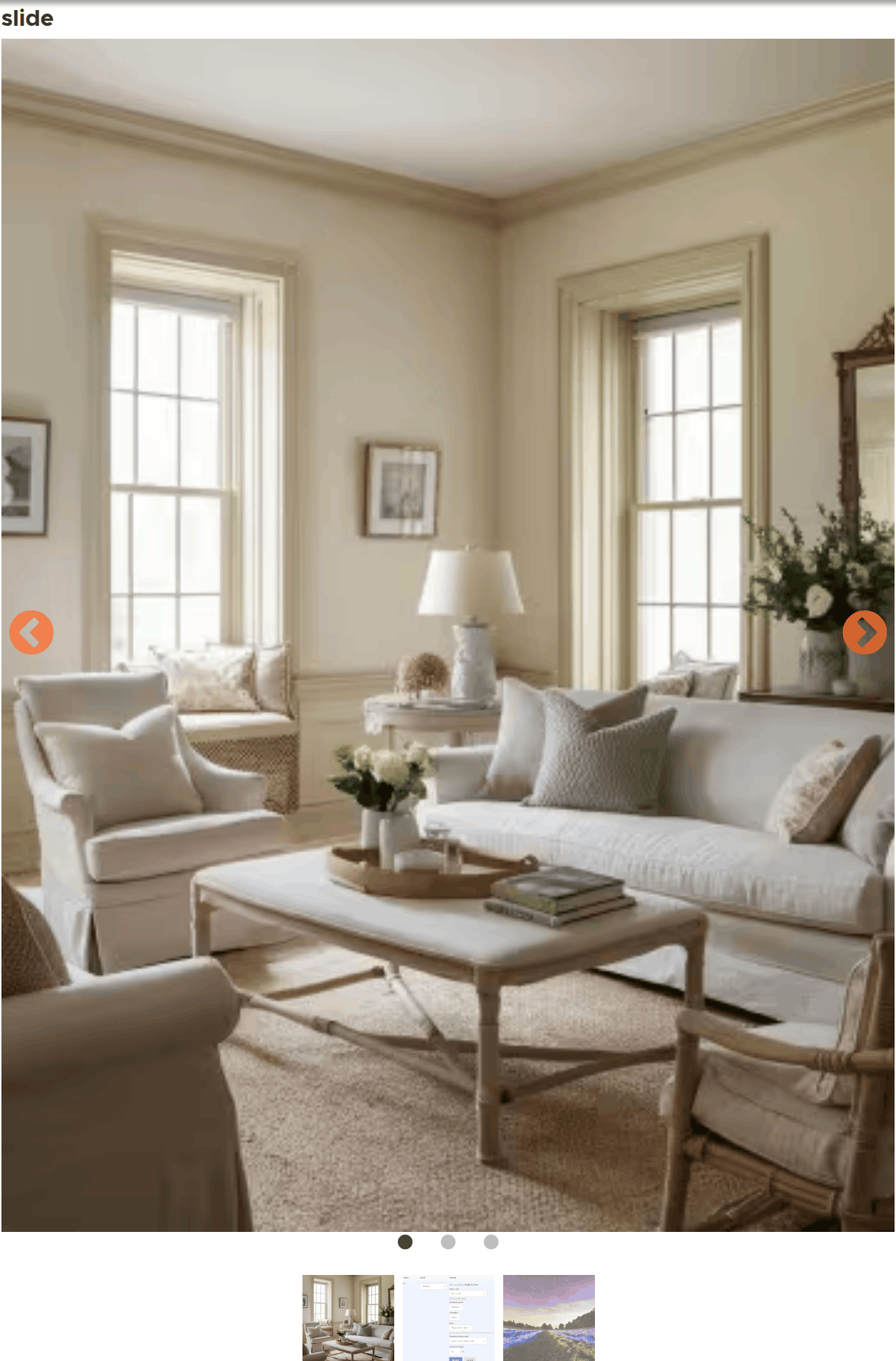
A three item media field rendered by Media Scroller: main slide with arrows, dots and the synced thumbnail rail.
Key Takeaways
- Media Scroller is a contributed Drupal module with one field formatter,
media_scroller_field_formatter, for multi-value image fields. - It shows a large main slide with a thumbnail strip underneath that stays in sync with it. It is built on the Slick carousel library.
- It works with core image fields. It also works with media reference fields that point to Image media using
field_media_image. - You set it up entirely from Manage Display. No template overrides are needed.
- It requires Drupal 10.3+ or 11, the core Image module, the Slick contrib module, and the Slick JS/CSS library in
libraries/.
What is the Media Scroller module?
Structurally, Media Scroller is one thing: a field formatter plugin called media_scroller_field_formatter. It attaches to two kinds of fields:
- Image fields: core’s image field type, used directly.
- Media reference fields: any
entity_referencefield that targets the media entity type. The referenced media has to use the Image bundle with its defaultfield_media_imagefield.
The second case is worth a closer look. It’s the one people usually reach for on modern Drupal builds, where content is modeled through the Media Library rather than raw file fields.
The formatter’s isApplicable() check is deliberately narrow here. It doesn’t try to guess at arbitrary media bundles. It looks for a real image underneath.
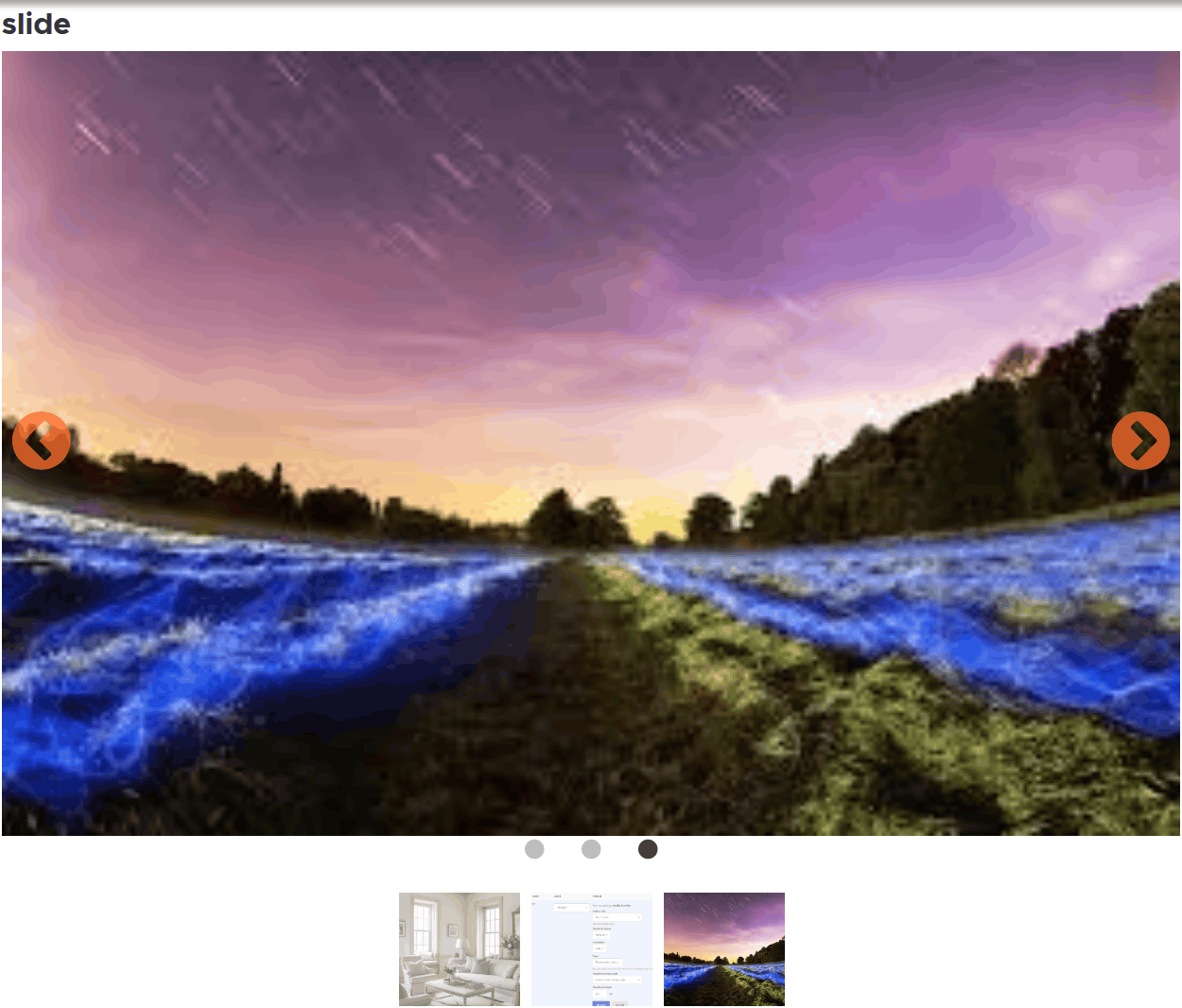
Clicking the third thumbnail moves the main slide and the active dot together.
How does Media Scroller keep the slider and thumbnails in sync?
Everything the formatter renders goes through a single Twig template, media-scroller.html.twig. It lays out a main .media_scroller-slider and, when enabled, a .media_scroller-nav thumbnail strip.
A behavior in media-scroller.js then starts Slick on both. It also adds an afterChange listener. When you scrub through the main slide, the thumbnail strip moves to match. When you click a thumbnail, the main slide jumps to it.
How do you install Media Scroller?
Media Scroller depends on two things. The Slick contrib module handles the Drupal side. The actual Slick JS/CSS library has to exist under libraries/.
Composer only reads the repositories key from your project’s own root composer.json, never from a dependency’s. So installing a module can’t quietly pull in a raw JS library behind the scenes. That’s why the library gets its own step below.
Step 1: Download the module with Composer
From your project root, run:
composer require drupal/media_scrollerStep 2: Enable the module
drush en media_scroller -yStep 3: Add the Slick JS/CSS library
Pick one of these two options:
- Manual download: Download the Slick release by hand and place it at
web/libraries/slick/slick/, so thatslick.min.jsandslick.cssresolve there. - Composer: Add a package repository for it in your own project’s
composer.jsonand run composer requirecomponents/slick:^1.8.1. composer/installersthen place it automatically.
Step 4: Select the formatter in Manage Display
Open Manage Display for your content type and choose Media Scroller as the formatter for your image or media field. Its settings appear inline, covered in the next section.
Step 5: Check that the slider loads
View a node with several images. You should see a main slide, plus whichever pager you turned on. If you only see plain images, the library is the usual culprit.
Why does the slider show plain images with no arrows or thumbnails?
The missing library is almost always the cause. You’ll see a wrapper full of plain <img> tags with no slider applied, and the arrows and thumbnails won’t respond to clicks.
The JS behavior checks for $.fn.slick and simply exits if the library isn’t loaded. The failure is silent, so nothing shows up in the log.
What settings can you configure in Manage Display?
Once you select Media Scroller on a field in Manage Display, its settings appear inline. There’s no separate config form or entity.

Media Scroller selected on a media reference field, with its settings summary in the Manage display row.
- Image style: Applied to the main slide. Leave it empty to show the original, unprocessed image. This helps when slides mix portrait and landscape and shouldn’t all be cropped to one shape.
- Transition speed: Slow, Medium, or Fast, which map to 800ms, 400ms, and 200ms. Medium is the default and matches the formatter’s original hardcoded speed, so upgrading doesn’t change existing displays.
- Animation: Slide or Fade. Fade swaps Slick’s easing curve for a linear one, since
cssEaseonly applies to the slide transition. - Pager (Thumbnails, Dots, Arrows): Three separate checkboxes rather than a single choice. Turn on any one, any combination, or none at all.
- Thumbnail image style and height: Shown only once Thumbnails is checked (via
#states). By default, it reuses the main image style. Set a different one if you want a cropped, uniform strip under a main slide whose proportions vary.
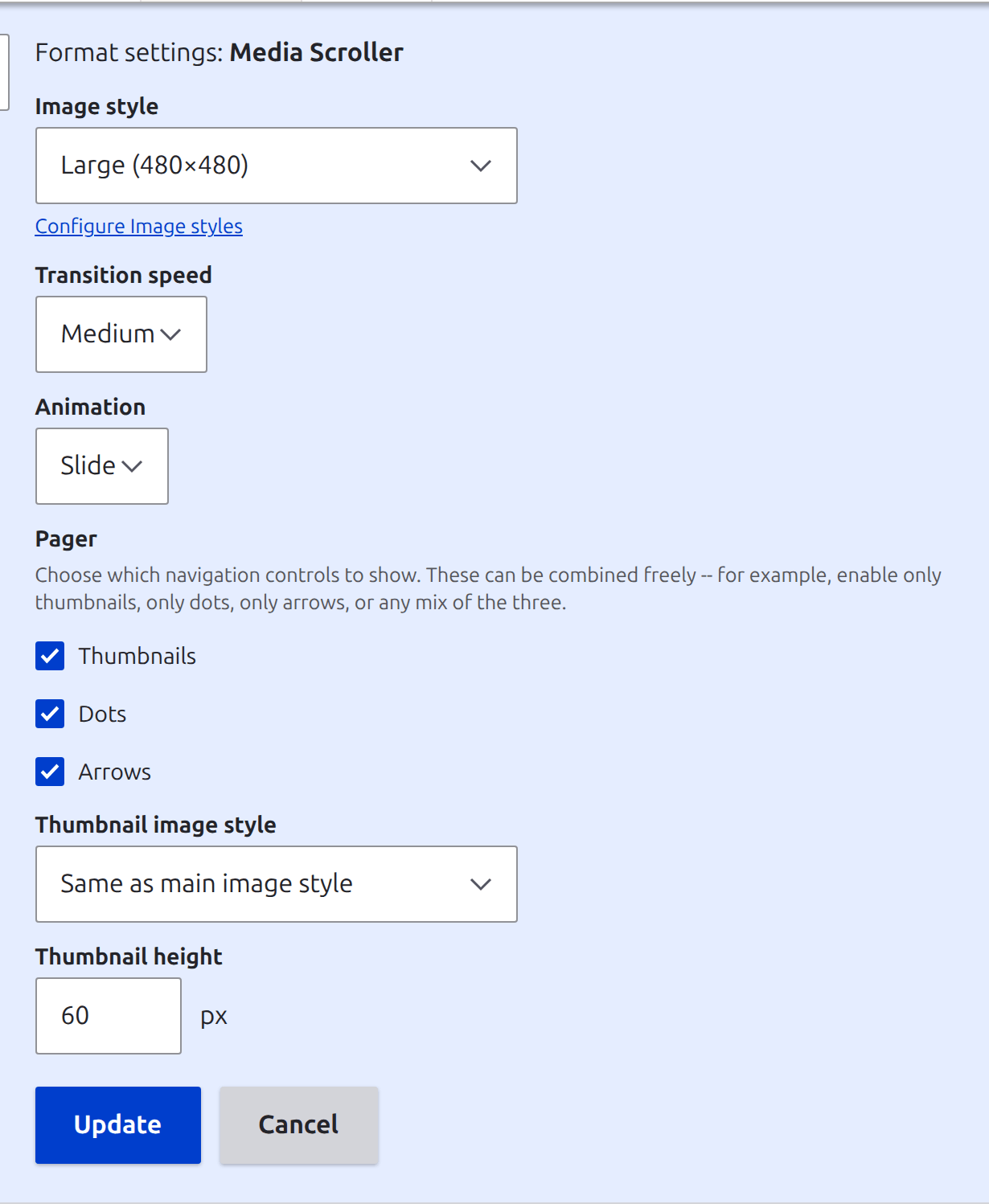
The formatter's inline settings form, with all three pager controls enabled.
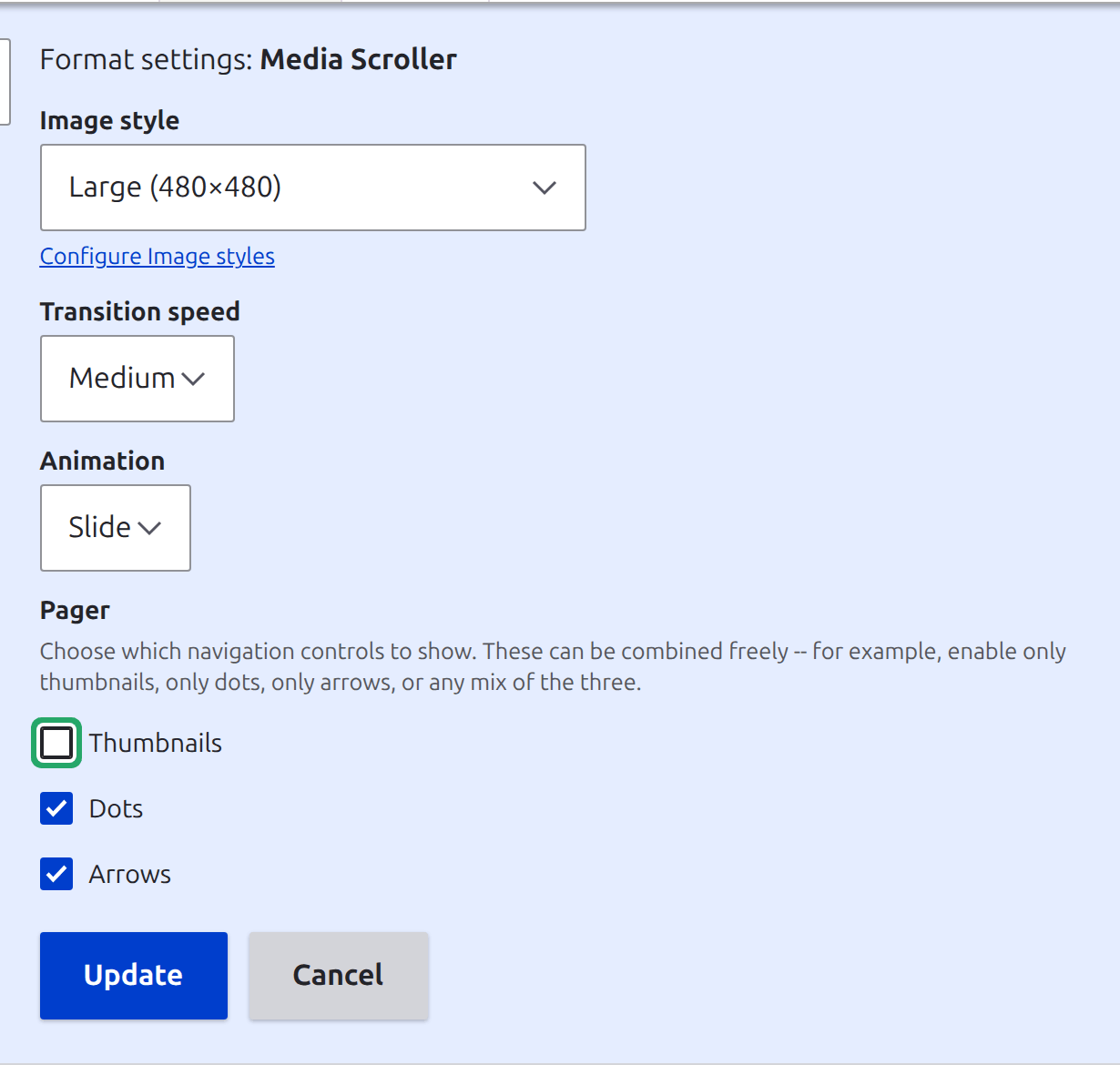
Unchecking Thumbnails hides the thumbnail style and height fields immediately, via #states.
Does Media Scroller force a fixed aspect ratio?
No, and that’s on purpose. The main slider doesn’t crop or force a fixed ratio by itself. Each slide shows at whatever proportions its chosen image style produces.
Slick’s adaptiveHeight option resizes the container to match as the active slide changes. So portrait and landscape images can share one field without one squashing the other.
If you want a uniform frame, set it in the image style itself, not in the formatter.
How is Media Scroller built under the hood?
| Layer | Responsibility |
MediaScrollerFieldFormatter | Gets file URIs from either file or media entities, builds the main and thumbnail URL arrays, and passes settings to the theme layer. |
media_scroller.html.twig | Renders the wrapper with data-scroller-* attributes that the JS reads at attach time. There’s no inline <script> and no slider markup rendered on the server. |
media-scroller.js | One Drupal behavior, guarded by once(). Starts the main Slick instance. Only if thumbnails are on, it starts a second Slick instance for the nav strip, synced through afterChange and slickGoTo. |
media-scroller.css | Layout only. It also fixes a real Slick quirk. Without an explicit z-index, DOM order puts the slide image over .slick-prev but not .slick-next, so only the left arrow would disappear. |
The formatter also renders nothing at all if a field has zero valid image URIs. That means it never outputs an empty wrapper or a broken Slick instance with nothing inside it.
When should you use Media Scroller?
Media Scroller fits whenever a content type has a true multi-value image field. A few places where it does its best work:
- Product pages. A product with several photos gets one large image and a thumbnail strip to jump between the rest. Click a thumbnail and the main slide follows.
- Property listings. A listing’s photos can mix portrait and landscape shots. The slider doesn’t force a ratio, so each photo keeps its shape, and the container adjusts as you move through them.
- Portfolio pieces. Leave the main image style empty, and the work shows as the original, unprocessed image. Give the thumbnails their own style if you want a neat, uniform strip underneath.
- Media Library builds. If your site models images as Image media, point the formatter at the media reference field. It reads the image straight from
field_media_image.
It suits the request “let people click through these images with a thumbnail strip.”
When to skip it: if the brief calls for a lightbox grid or a full-width hero carousel, pick a different tool. The same goes for media reference fields that point to bundles other than Image. The formatter’s applicability check looks for Image media with field_media_image, so other bundles fall outside what it’s built for.
It’s a thin, focused formatter: one plugin, one template, one behavior. If your project doesn’t already use Slick elsewhere, adding the library is the one real cost. Everything after that is a checkbox in Manage Display.
Requirements: Drupal 10.3+ or 11, the core Image module, and the Slick contrib module, with the underlying Slick JS/CSS library present in libraries/.
Final thoughts
Image galleries are one of those requirements that look small on a ticket. Then someone asks for thumbnails, and suddenly there’s a custom template to maintain.
Media Scroller keeps that work inside Manage Display. You get a main slide, a thumbnail strip that stays in sync, and settings an editor can change without touching code. It handles image fields and Media Library fields, and it leaves aspect ratios to your image styles.
The one thing to get right is the Slick library. Once it’s in libraries/, the rest is a few checkboxes. If your Drupal build needs a hand with galleries, media handling, or anything else on the frontend, talk to our Drupal development team.
Frequently Asked Questions
Which Drupal versions does Media Scroller support?
Media Scroller requires Drupal 10.3+ or 11. It also needs the core Image module, the Slick contrib module, and the Slick JS/CSS library in libraries/. Once those are in place, you configure everything from the Manage Display screen without any template overrides.
Does Media Scroller work with Media Library fields?
Yes, if the referenced media uses the Image bundle with its default field_media_image field. Media Scroller works with any entity_reference field that targets the media entity type under that condition. Its isApplicable() check is deliberately narrow. It doesn’t guess at arbitrary media bundles and only looks for a real image underneath.
Why isn’t my Media Scroller slider working?
The Slick JS/CSS library is almost always missing. Plain <img> tags with no working arrows or thumbnails point to this. The JS behavior checks for $.fn.slick and exits silently if the library isn’t loaded, so nothing appears in the log. Place the library at web/libraries/slick/slick/ or install components/slick:^1.8.1 through your project’s composer.json.
Why doesn’t Composer install the Slick library automatically?
Composer only reads the repositories key from your project’s own root composer.json, never from a dependency’s. So installing drupal/media_scroller can’t pull in the raw Slick JS library behind the scenes. You can download the Slick release by hand, or add a package repository for it in your own composer.json.
What transition speeds and animations does Media Scroller offer?
Media Scroller has three transition speeds: Slow (800ms), Medium (400ms), and Fast (200ms). Medium is the default and matches the formatter’s original hardcoded speed, so upgrading leaves existing displays unchanged. For animation, you can pick Slide or Fade. Fade swaps Slick’s easing curve for a linear one, because cssEase only applies to the slide transition.
Can I use thumbnails, dots, and arrows together?
Yes. Thumbnails, Dots, and Arrows are three separate checkboxes rather than a single choice so that you can turn on any one, any combination, or none. The thumbnail image style and height settings appear only once Thumbnails is checked. By default, the thumbnail style reuses the main image style.
Can portrait and landscape images share one Media Scroller field?
Yes. The main slider never crops or forces a fixed ratio. Each slide shows at the proportions its image style produces, and Slick’s adaptiveHeight option resizes the container as the active slide changes. If you want a uniform frame, set it in the image style. Leaving the main image style empty shows the original, unprocessed image.
Last updated on October 13, 2026
About the author
Chaitanya R Dessai
Meet Chaitanya R Dessai, a Drupal Developer who is a Cricket fanatic and dreams about traveling to Switzerland and North America. And if he sees a cool car drive by, nothing can stop him from turning his head for a second look!


Is Drupal getting easier to work with? What Canvas, Drupal CMS and AI change
Drupal Canvas, Components, Drupal CMS and AI are cutting setup and repetitive work. Here’s what’s easier now, and where developers still matter.
9 min read

Getting started with Drupal Canvas: A frontend developer's first look
Wondering why Drupal needs another page builder? Here's what I learned installing Drupal Canvas, exposing my SDCs, and writing React right in the browser.
12 min read


Canvas Page Metatag Module: How to restore full SEO controls to Drupal Canvas pages
Drupal Canvas hides most Metatag fields behind one SEO title box. Check out how Canvas Page Metatag restores them and fixes a Robots checkbox bug.
11 min read