
What should content editors know about Drupal accessibility?

Drupal accessibility for content editors refers to the practices and tools that non-developer roles use to ensure Drupal content remains usable for everyone, regardless of any disabilities. And while developers handle the technical foundation of semantic markup, ARIA attributes, and theme-level compliance, content editors shape a significant part of what users actually encounter: headings, images, links, and tables. These decisions directly affect whether someone using a screen reader, keyboard navigation, or voice tool can use the page at all.
Content editors and content managers also influence how accessible a Drupal website becomes through their formatting, writing, and content organization decisions. By following a few accessibility best practices, you can improve usability for people with disabilities while also supporting better SEO and content discoverability.
Key Takeaways
- Content editors play a major role in maintaining Drupal accessibility standards alongside developers.
- Proper heading structure is non-negotiable for accessibility and SEO performance.
- Meaningful alt text and descriptive link text help screen reader users navigate content effectively.
- Accessible tables improve usability for assistive technologies and search engines.
- Drupal modules like CKEditor Accessibility Checker and Editoria11y help editors identify accessibility issues directly within the CMS.
Why is accessible content an editorial responsibility in Drupal?
Content accessibility directly affects how users interact with a website, especially users relying on assistive technologies such as screen readers, keyboard navigation, or voice navigation tools.
Most importantly, accessibility improvements also strengthen SEO because search engines use structured content, headings, descriptive links, and semantic organization to understand webpages better. This is where content editors come into the picture - they’re behind your content structure and how your content ranks in SERPs.
Content editors can improve accessibility by:
- Using proper heading structure
- Writing meaningful alternative text (alt text)
- Creating descriptive link text
- Structuring tables correctly
- Using Drupal’s built-in accessibility tools properly
How should you use proper heading structure in Drupal?
Headings help users understand the hierarchy of information and allow assistive technologies like screen readers to navigate the page efficiently. Proper heading usage improves both accessibility and SEO.
Basically, headings can beautify content with style, but actually, headings are for meaning and structure.
Why are headings important for accessibility?
Screen readers don't read a page the way sighted users scan it. Users relying on tools like JAWS or NVDA often jump between headings to get a sense of the page before reading in full, which means a broken or skipped heading structure actively disrupts their navigation.
- Screen reader users navigate pages by jumping between headings.
- A proper heading structure helps users understand page layout quickly.
- Missing or skipped heading levels can confuse.
Why are headings important for SEO?
Search engines crawl page structure the way screen readers do. They rely on headings to understand what a page covers and how that content is organized. Logical, descriptive headings help search engines index content more accurately.
- Search engines use headings to understand page structure.
- Clear, meaningful headings improve content relevance and indexing.
Rules for Proper Heading Structure
- The main heading of the page should always be Heading 1 (H1).
- Start section headings in the Body field with Heading 2 (H2).
- Use H3–H6 only in the correct hierarchical order.
- Do not skip heading levels (e.g., H2 → H4).
- Do not use bold text instead of headings.
- Do not choose headings based on appearance alone.
- Headings must reflect content structure — not visual styling.
Correct Example:
H2 – Services
H3 – Drupal Migration
H3 – Consulting
H3 – Support & Maintenance
How do you write good alt text for images?
Alternative text (alt text) explains the purpose or meaning of an image on a webpage. Since content editors understand why and where an image is being added, they play an important role in writing meaningful alt text.
Why is alt text important?
From a user’s perspective, alt text is important for several reasons:
- Screen readers such as NVDA, JAWS, and VoiceOver read the alt attribute aloud to users who cannot see the image.
- If an image fails to load due to slow internet or technical problems, the alt text is displayed in its place, helping users understand what was intended.
- Alt text communicates why the image is included on the page, not just what it visually contains.
Guidelines for Writing Alt Text
When adding alt text, keep the following best practices in mind:
- Focus on the image’s purpose or message in the context of the page.
- Keep the description short, clear, and relevant to the surrounding content.
- Avoid unnecessary phrases such as “image of” or “picture of,” since screen readers already announce it as an image.
- If the image is purely decorative and does not add meaningful information, use an empty alt attribute (alt="") to mark it as decorative.
Examples
Good Example:
A student using a laptop during an online training session
Bad Examples:
- Image123.jpg
- Picture of a student
How can you create meaningful hyperlink text?
Links are used for:
- Same-page section navigation
- Same website page navigation
- Navigation between different websites
- Redirecting to an email client
- Prompting mobile calls
According to accessibility standards, especially for screen readers, link text should clearly describe the destination or action because screen reader users often navigate by reviewing links separately.
In summary, descriptive links improve:
- Screen reader usability
- Keyboard navigation
- SEO
- Overall user experience
What link text should you avoid?
Avoid generic phrases such as:
- Click here
- Read more
- Learn more
- More
These phrases can confuse screen readers because they lack context.
Here are some better link text examples:
Use descriptive links such as:
- Download the annual report (PDF)
- View accessibility policy
- Register for the training session
These examples clearly explain both the destination and the expected action.
How should tables be structured for accessibility?
Tables are semantic HTML elements intended for tabular data. Proper table structure improves both accessibility and SEO. When a screen reader encounters a table without proper header markup, it reads the cells as plain text with no indication of what each value represents. A user hearing "45, 120, 67" has no idea those are prices, counts, or durations.
Semantic elements like <thead>, <th>, and <caption> give screen readers the context to announce "Column: Price - 45" instead of just "45." This is why a visually clean table can still be completely inaccessible - a structure that looks obvious to a sighted user is invisible to assistive technology unless it's in the markup.
A table can contain:
- caption
- thead
- tbody
- tfoot
These elements help screen readers understand:
- Table headings
- Body content
- Related footnotes
What are the best practices for accessible tables?
Here’s how you can create accessible tables:
- Use header rows.
- Ensure column headings clearly describe the data.
- Add captions when helpful.
- Keep tables simple.
What should you avoid?
- Merging cells unnecessarily.
- Creating complex multi-level tables without consulting an administrator.
- Using tables for layout or visual spacing.
Which Drupal accessibility checker modules should editors use?
Drupal offers several accessibility modules that allow content editors to identify and fix issues without developer involvement. Rather than waiting for a developer audit, editors can catch problems like missing alt text, improper heading order, or unlabeled links during the content creation process itself.
Some modules scan for issues after content is written, others enforce requirements at the point of saving, and some use AI to reduce manual effort altogether.
CKEditor Accessibility Checker
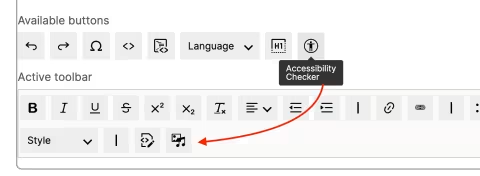
CKEditor 5 includes accessibility support features that can be enabled using the Drupal module CKEditor Accessibility Checker.
After installing the module:
- Move the “Accessibility checker” icon into the active toolbar within CKEditor text editor settings.
- Navigate to any page using CKEditor with the enabled text format.
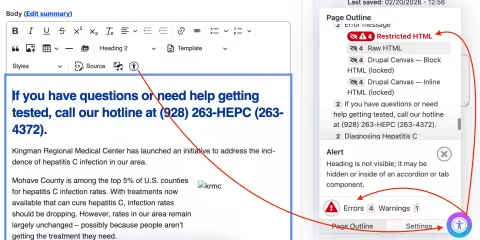
- Click the “Accessibility checker” icon to scan content for accessibility issues.
Editoria11y Accessibility Checker
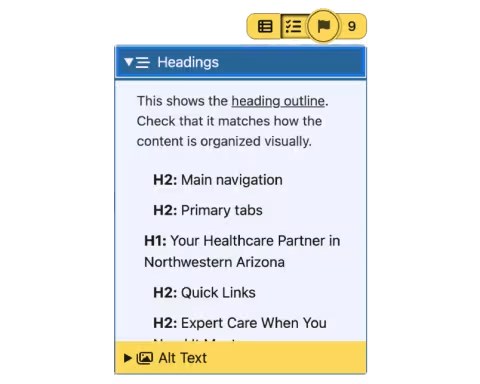
Editoria11y automatically generates accessibility reports and creates issue lists directly on pages.
Unlike CKEditor Accessibility Checker, editors do not need to open the CKEditor interface to perform checks.
The module also provides:
- A settings page with configuration options
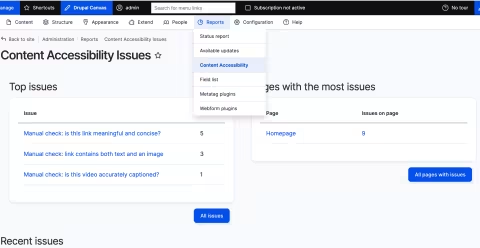
- Centralized accessibility reports
- Page-level issue prompts
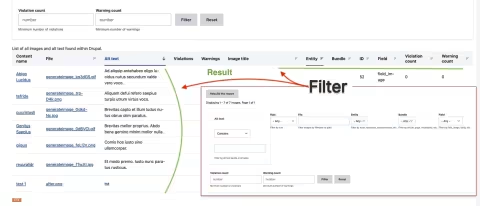
Alt Text Validation
Alt Text Validation enforces alt text requirements on image fields at the content level, preventing editors from saving content without providing alternative text.
Unlike the checker modules above, this module blocks submission until alt text is present, making it harder to accidentally publish images without descriptions.
The module also provides:
- Configurable validation rules per image field
- Error messages that prompt editors to add missing alt text
- Support for multiple content types and field configurations
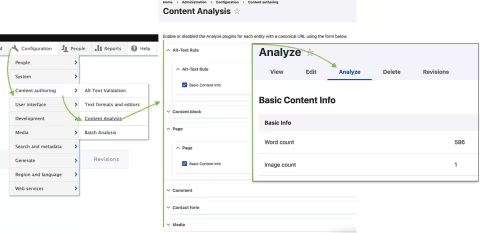
Analyze
Analyze provides on-page content analysis within the Drupal editorial interface, surfacing readability and quality feedback alongside accessibility-related checks.
Editors can review results without leaving the content edit form, which helps catch structural issues, such as dense text blocks or missing headings, before a page is published.
The module also provides:
- Integration with multiple analyzer plugins
- A side-panel display within the node edit form
- Support for extending analysis with custom checks
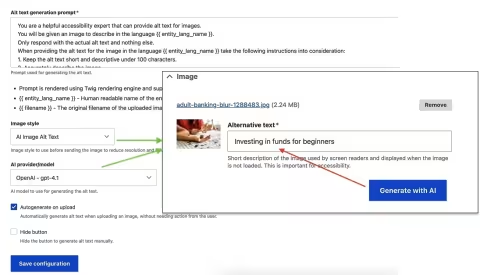
AI Image Alt Text
AI Image Alt Text uses AI to automatically generate alternative text suggestions for images uploaded to Drupal, which is useful on sites where writing alt text manually for every image is not practical.
Editors can review and edit the suggestion before saving, so the generated text can be corrected or refined before it goes live.
The module also provides:
- Automatic alt text generation on image upload
- Support for configurable AI providers
- Editable suggestions that editors can refine before publishing
Final thoughts
Drupal accessibility isn't only a developer concern. It's split across roles. Developers control the technical layer: semantic HTML, ARIA attributes, and theme compliance. Content editors control the content layer: heading structure, alt text, link descriptions, and table markup. A site can pass a developer audit and still be unusable if the content layer is handled carelessly.
The practices you read in this blog - proper headings, meaningful alt text, descriptive links, accessible tables, and using tools like CKEditor Accessibility Checker and Editoria11y are the editor's side of that responsibility. When strategically planned and handled, you can improve SEO, content discoverability, and the experience for every user, not just those using assistive technology.
If you're looking to build or improve your Drupal site with accessibility built in from the ground up, talk to us; we handle the technical layer so your editors can focus on the content.
Frequently Asked Questions
Why is accessibility important for Drupal content editors?
Drupal accessibility standards ensure content remains usable for people with disabilities while also improving SEO, navigation, and overall user experience.
What is the correct heading structure in Drupal content?
Drupal website pages should use a heading structure in the order of a single H1 heading, followed by properly nested H2–H6 headings without skipping levels.
Why is alt text important for accessibility?
Alt text helps screen reader users understand images and provides fallback descriptions if images fail to load.
What kind of link text should editors avoid?
Editors should avoid vague phrases like “Click here” or “Read more” because they do not describe the destination clearly.
How do accessible tables improve usability?
Accessible tables use semantic structure like header rows and captions, helping screen readers interpret tabular data correctly.
What does CKEditor Accessibility Checker do?
It scans Drupal content inside CKEditor and identifies accessibility issues directly during content editing.
How is Editoria11y different from CKEditor Accessibility Checker?
Editoria11y performs automated accessibility checks directly on pages and provides centralized reporting without opening CKEditor.
What is the difference between a developer's and a content editor's accessibility responsibilities in Drupal?
Developers handle the technical accessibility layer of semantic HTML, ARIA roles, keyboard navigation support, and theme-level compliance. Content editors handle the content layer, comprising the heading structure, image alt text, link descriptions, and table markup. Both roles are necessary; developer-level accessibility fixes cannot compensate for inaccessible content, and vice versa.
Last updated on October 7, 2026
About the author
Ravikant
Meet Ravi Kant Kumawat, Drupal FE Developer and an avid reader. Ravi has gathered immense knowledge in his field of expertise and loves to keep exploring more. He absolutely enjoys gardening or even a game of badminton when not working. He fancies the idea of exploring new places near his hometown!

Why Drupal Development Services are getting easier to work with
The tools around Drupal have become simpler, complementing Drupal. Read our take on how Canvas, components, Drupal CMS, and AI are changing Drupal work.
9 min read

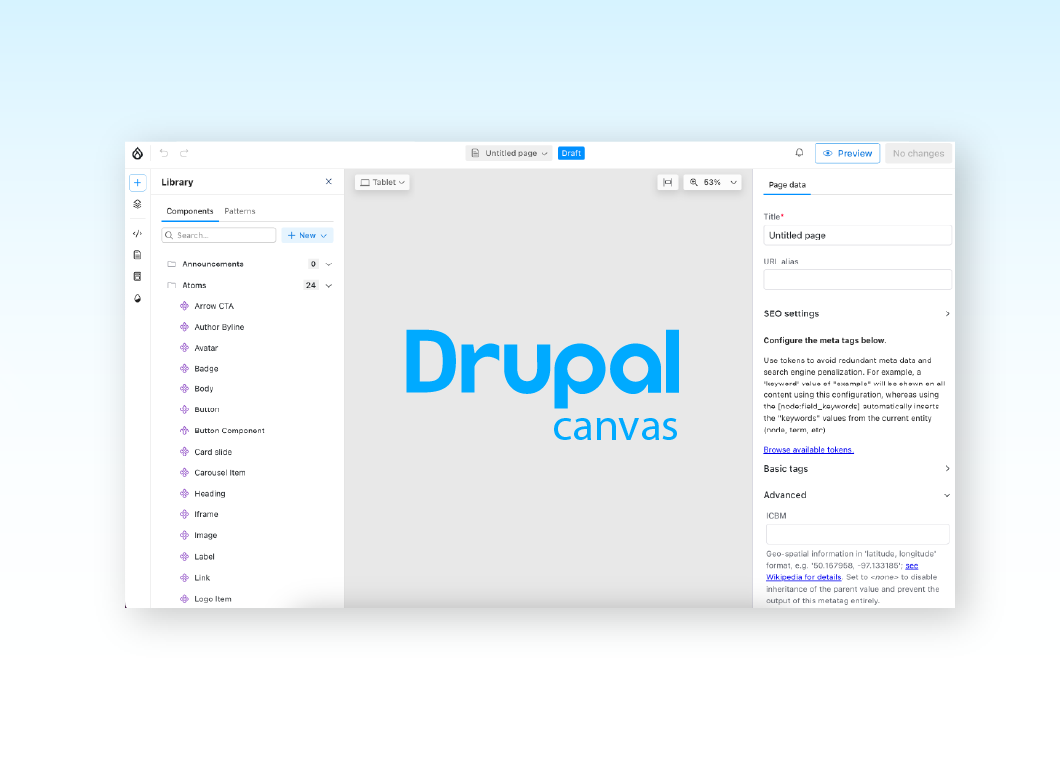
Getting started with Drupal Canvas: A frontend developer's first look
Wondering why Drupal needs another page builder? Here's what I learned installing Drupal Canvas, exposing my SDCs, and writing React right in the browser.
12 min read

Canvas Page Metatag Module: How to restore full SEO controls to Drupal Canvas pages
Drupal Canvas hides most Metatag fields behind one SEO title box. Check out how Canvas Page Metatag restores them and fixes a Robots checkbox bug.
11 min read