
Drupal Masquerade Module – A Brief Tutorial on How to Easily Switch Your Drupal Roles

As the old adage goes, “Walk a mile in his shoes before you judge him”. The best way to find out what your website looks like to your client is to impersonate him. Drupal 8 offers thousands of modules to make working with it easier and more efficient. And some of them are hidden gems that need some discovering. The Drupal Masquerade module is one such handy module that every Drupal developer needs but not everyone knows about.
Working on a Drupal website and want to know how it looks like to another user when they are logged in? You will probably need to switch users by logging in and out as different user accounts. If you are having trouble remembering all the various accounts login details you need to test with, the Drupal Masquerade module can be a savior.
What does the Drupal Masquerade Module do?
The Drupal Masquerade module lets you switch accounts of different users and surf the site as that user without undergoing the login process. Of course, you would need sufficient permissions to do so. What’s more, you can also switch back to your own account any time! Without the Drupal 8 Masquerade module, you will need to log in and out of the various accounts, which is not always convenient.
Getting Started with the Drupal 8 Masquerade module
Installing
Installing the Masquerade module for Drupal 8 is like installing any other contributed modules. I’m using the Composer to install since it automatically installs all of the necessary dependencies and Drush commands to enable the module. Open the terminal, within the project enter the following command.
      $ composer require drupal/masquerade
      $ drush en masquerade
The Easy 6-Step Configuration
Configure user permissions as required in Administration -> People -> Permissions. Usually, it is only the administrator that’s allowed to do the masquerading. However, permissions to use masquerade can also be given to other users with a role.
Image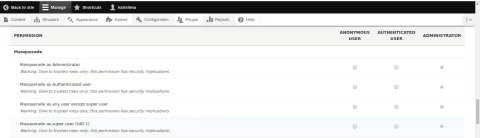
Once the Drupal Masquerade module is installed and enabled and permissions are granted. Add Users with roles in People -> Add User. Ignore this step if you already have a user whose account you want to test or switch.
Image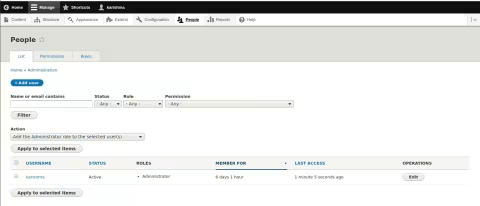
Once a user is created, “Masquerade as” option will become available next to each user in the dropdown list of “operations.” We can also see it on each user’s page.
Image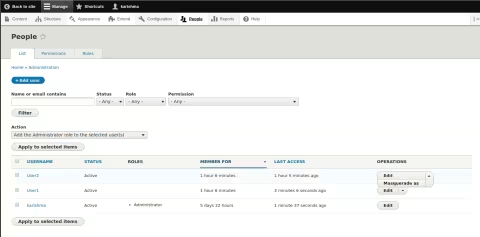
In addition, there is a block form in block layout for quick user switching that can be placed anywhere on the website, like any other block.
1. In Structure -> Block layout
2. Click on the site’s region where we want to see it, click “Place block”
3. Find “Masquerade Forms” on the list.
4. Click “Place block” again and finally save the blocks.Image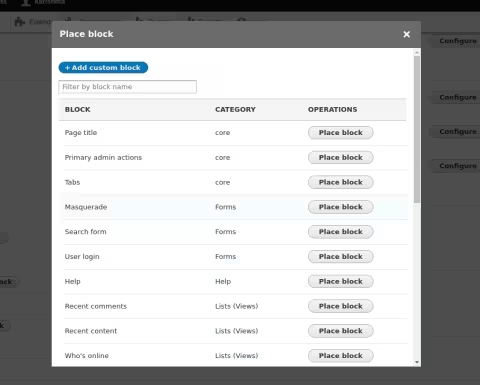
The following Masquerade block appears in the region it was placed.
Image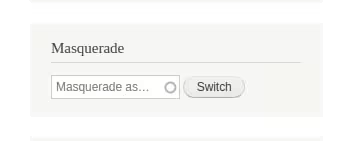
In the block, enter the name of the user in the Masquerade field and click switch. You are now switched to that particular user’s account without undergoing the login process.
Image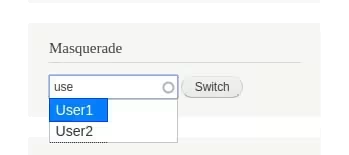
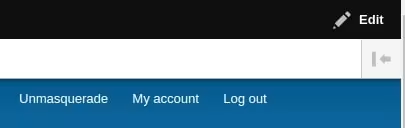
- You can see the “Unmasquerade” link at the top of the page. On clicking on this, you can switch back to your own account.
This article will give you a brief overview of what the Drupal 8 Masquerade module can do for testing different sorts of content and users by switching between user accounts without undergoing login procedures. Need help in making the best out of Drupal 8 with features as valuable as this? Contact us now.
Last updated on October 5, 2026
About the author
Karishma
Meet Karishma Amin, a Software Engineer, and a pet lover. Karishma is a talented engineer but still a kid at heart who dreams about flying to Disneyland, Paris. She enjoys shopping and binge-watch thriller movies. If you want to annoy her, make her listen to the sound of cutting tiles.

How we patched 30+ enterprise client sites for a Critical PHP Vulnerability within 24 Hours (and what we found when we looked back)
Everyone’s talking about the 9.2 PHP vulnerability that dropped on a Wednesday evening. We patched 30+ Drupal sites in 24 hours with zero downtime. Here’s what our audit found next.
5 min read

Why (and how) government agencies should migrate from DNN to Drupal
Planning a DNN to Drupal migration? See how Drupal helps government agencies meet WCAG 2.1 AA, Section 508, and ADA Title II rules with stronger web governance.
8 min read

How to display image galleries with thumbnail navigation in Drupal
Need better image galleries in Drupal? The Media Scroller module adds a large main image, synced thumbnail navigation, and simple configuration without custom templates.
11 min read