
Implementing Google Directions Module in Drupal 8 – A quick guide

Communicating with Google services is simple and effortless with a wealth of API’s to choose from. With Drupal 8’s powerful API-first capabilities, interacting with these services are now easier and more effective. The API in focus is the Google Directions API. Drupal 8 offers a Google Directions module that integrates with the Google Directions API.
What does the Google Directions Module do?
The Drupal Google Directions module allows you to create and add a block to your content where users can add two locations and find directions between the two points. Also displayed are suggested routes based on modes of transport (public transit, cycling, walking or driving) and the time it will take to get there. This block can be positioned via the Block layout and customized to fit any website’s style guidelines.
Getting Started with Google Directions Module
Let’s get started with implementing the Google Directions module.
Get the Google API Key
A Google API Key is required to access the Google Directions Service.
To get a key, visit https://developers.google.com/maps/documentation/directions/start with your Google account and follow the Guide.
To get an API key:
- Visit the Google Cloud Platform Console.
- Click on the project drop-down and select or create the project for which you want to add an API key.
Image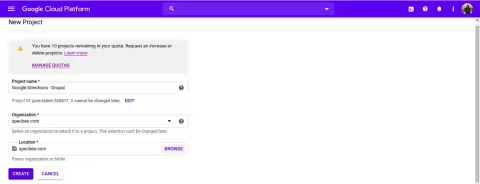
- Click on the menu button and select APIs & Services -> Credentials

- On the Credentials page, click on Create credentials -> API key.
- The “API key created” dialog displays your newly created API key. Copy the API key as it must be configured in your Drupal Project.Image
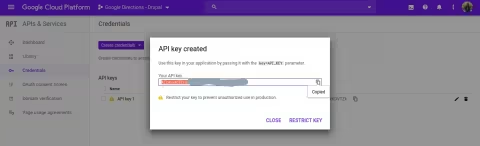
- Select Close. The new API key is listed on the Credentials page under API keys.Image
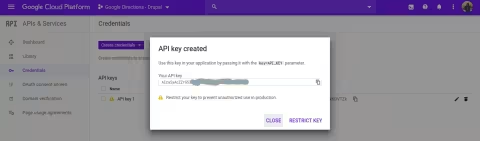
Enable the required APIs
- In the Google Developer Console Dashboard, click on the menu button, select APIs & Services -> LibraryImage
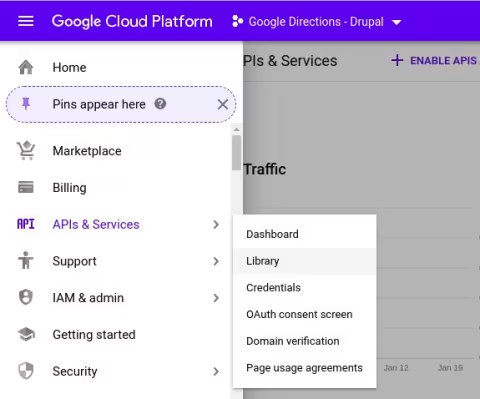
- Search for and enable the following APIs
○ Google Directions API
○ Google Maps JavaScript API
○ Google Places API
○ Google Geocoding API
Installing
Install and enable the Google Directions module as you would normally install a contributed Drupal module. Use your preferred method to download the modules. I’m using the Composer to install since it automatically takes care of all the necessary dependencies and Drush command to enable the module.
specbee@specbee-HP-ProBook-640-G1:/var/www/html/drupal_php$ composer require drupal/google_directions

specbee@specbee-HP-ProBook-640-G1:/var/www/html/drupal_php$ drush en google_directions
Configuration
- Configure user permissions as required in Administration -> People -> Permissions:
○ Administer Google DirectionsImage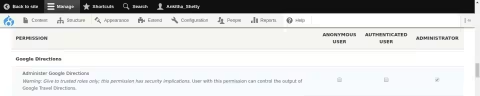
- Once Google Directions is installed and enabled and permissions are granted:
○ Visit /admin/config/services/google-directions to enter your Google API Key that we copied earlier.Image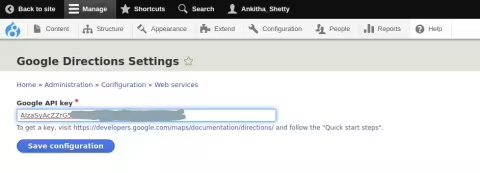
- ○ Use the Block layout page (/admin/structure/block) to position the block in one or more regions to suit your use case for the Google Directions module.Image
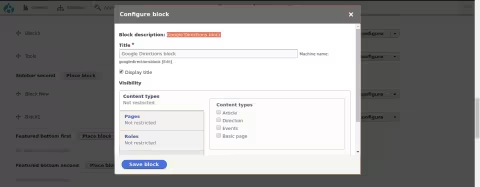
- ○ For each block placement, configure Visibility and other block settings to suit your use case.
○ Click on Save Block and visit the page. The following Google Directions block appears in the region it was placed.
Good to Note :
If the menu does not display, flush cache and try again.
- In the block enter the locations in “From” and “To” fields and hit “Go”.
Last updated on July 31, 2026
About the author
Ankitha Shetty
Meet Ankitha Shetty, a certified Drupal 9 developer. She loves attending and presenting at Drupal Camps and is a very active community member. Ankitha enjoys watching cricket and traveling to hill stations. Binge-watching web series is her current favorite pass time while she’s not cheering for her favorite cricket team.

AI Webform Generator: How to build Drupal Webforms from a single sentence
Tired of adding Webform fields one by one? AI Webform Generator builds Drupal forms from a single sentence and checks every AI output first.
12 min read

How to make your Drupal government website ADA Title II compliant before the deadline
Your Drupal government website needs to meet WCAG 2.1 Level AA by April 26, 2027. Here's what's in scope, how Drupal helps, and how to plan your government site's remediation.
14 min read

Getting started with Drupal Canvas: A frontend developer's first look
Wondering why Drupal needs another page builder? Here's what I learned installing Drupal Canvas, exposing my SDCs, and writing React right in the browser.
12 min read