
Extending Drupal Canvas with Canvas Full HTML

If you've been exploring Drupal's Canvas module (also known as Experience Builder), you've probably noticed its powerful component-based page-building capabilities. However, you may have also encountered a few limitations:
Canvas limits WYSIWYG editing within its own text formats. This leaves content editors with a limited toolbar and restricted HTML options.
While working with Canvas, I noticed that several people in the Drupal community were struggling with this restricted WYSIWYG setup. Canvas currently allows only its own canvas_html_block and canvas_html_inline text formats, which means there's no flexibility to customize the toolbar or apply additional text formats that your site might already have configured.
To solve this problem, I built the Canvas Full HTML module - a simple yet effective solution that enables full HTML text format support within Canvas, giving your content editors the complete CKEditor 5 experience they're used to.
In this tutorial, I’ll guide you through the entire process - from installing Canvas to utilizing the Canvas Full HTML module to enhance your editing experience.
What is Drupal Canvas (Experience Builder)?
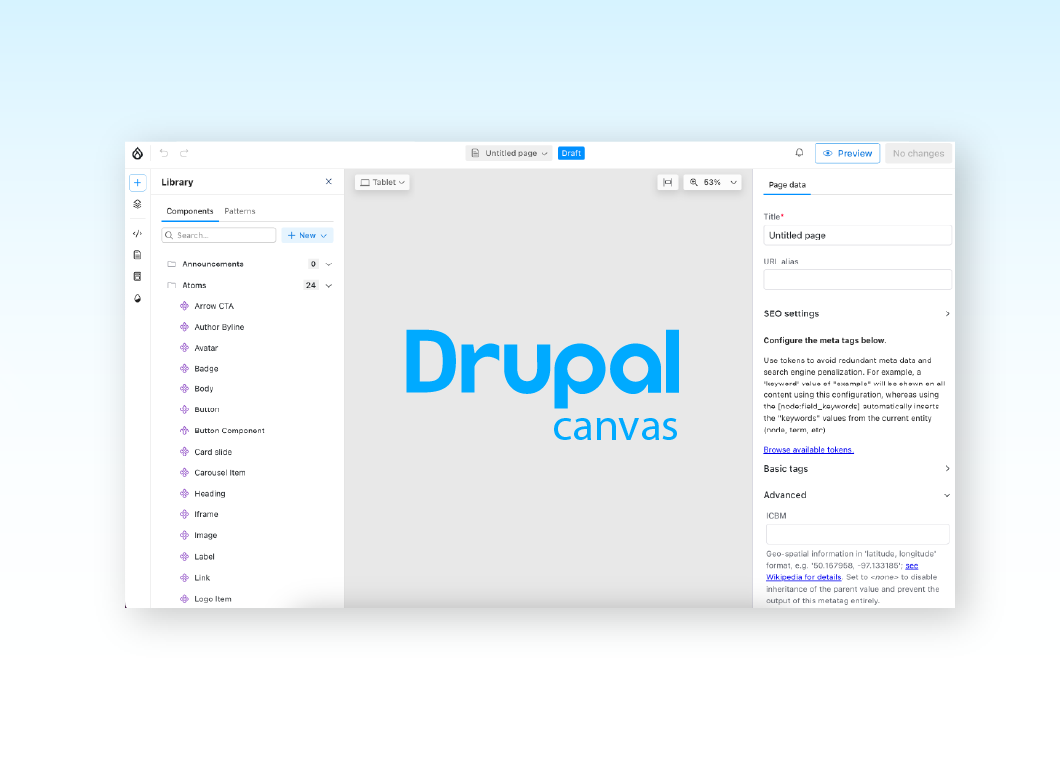
Drupal Canvas is the next-generation page-building tool as part of Drupal’s Starshot Initiative. It offers a modern, React-based interface and uses reusable components to build pages.
Key features of Drupal Canvas
- Component-based architecture: Use drag and drop pre-built components to build pages.
- Real-time preview: You’ll see instant changes as you edit the pages.
- Single Directory Components (SDC): Canvas uses Drupal’s modern component system.
- Developer-friendly: Canvas uses developer-friendly tools like Twig, CSS, and JavaScript for its components.
Why consider Canvas?
Canvas represents the future of content editing in Drupal. It bridges the gap between the developer experience (building components) and the editor experience (assembling pages), making it easier for both parties to collaborate effectively.
How to set up Drupal Canvas: A quick-start guide
Before we dive into the use cases of the Canvas Full HTML module, let’s start with setting up Canvas. Here’s how you can set up Drupal Canvas:
Prerequisites
- Drupal 10.3+ or Drupal 11
- PHP 8.1 or higher
- Composer
Step 1: Install Canvas
composer require drupal/canvas
drush en canvas
Step 2: Use the right admin theme (Gin recommended)
While Canvas works with any admin theme, Gin provides the best experience.
Here's why:
- Modern UI: Gin's clean interface complements Canvas's React-based UI.
- Better toolbar integration: Gin Toolbar provides a streamlined navigation experience that works well alongside Canvas.
- Consistent design language: Both Canvas and Gin follow modern design principles, creating a cohesive editing experience.
- Active development: Gin is actively maintained and regularly updated for compatibility with new Drupal features.
To install Gin:
composer require drupal/gin drupal/gin_toolbar
drush en gin gin_toolbar
Then set Gin as your admin theme at Administration → Appearance.
Step 3: Create your first Canvas page
- Navigate to Drupal Canvas by clicking on “Drupal Canvas” on top right corner of the admin toolbar → New Page
- Click to create a new Canvas page
- The Canvas editor will show an empty canvas ready for components
Step 4: Add components to your page
- In the Canvas editor, look for the component panel (usually on the left side). Click on the “+” icon
- Browse available components or search for specific ones
- Drag a component onto your canvas
- Click on the component to edit its properties in the right panel
- Fill in the required fields and see your changes in real-time
The Problem: Restricted WYSIWYG in Canvas
Now that you have Canvas running, try adding a component with a rich text field. You'll notice something limiting: the CKEditor toolbar is minimal, and not all the formatting options will be accessible to you.
Why does this happen?
Canvas creates its own text formats for security and consistency:
- canvas_html_block: For block-level content (paragraphs, headings, lists)
- canvas_html_inline: For inline content (bold, italic, links)
These formats intentionally restrict which HTML tags and CKEditor plugins are available. While this is great for security, it can be frustrating when you need:
- Source code editing
- More heading levels
- Special characters
- Custom styles
- Media embeds
- And other advanced formatting options
The community's struggle
Through discussions in the Drupal community, I found that many site builders and content editors were facing the same challenges:
- "How do I add a table in Canvas?"
- "Why can't I access the source code?"
- "I need more toolbar options for my editors."
Canvas's architecture doesn't allow toggling between text formats directly during page editing. The format is determined at the component level, making it impossible to switch formats on the fly.
The Solution: Canvas Full HTML Module
The Canvas Full HTML module addresses these limitations by replacing Canvas's restricted text formats with Drupal's full_html format, giving editors complete control over their content.
How it works:
The module uses Drupal's hook system to intercept Canvas's component configuration:
- hook_canvas_storable_prop_shape_alter(): When Canvas builds a component form, this hook detects rich text properties (those with contentMediaType: text/html) and replaces the allowed text format from canvas_html_block to full_html.
- Library integration: Since Canvas bypasses normal Drupal page rendering, the module uses hook_library_info_alter() to inject its CSS and JavaScript directly into the Canvas UI.
- CKEditor toolbar fix: Canvas uses Radix UI components with overflow: hidden on scroll containers, which can clip CKEditor's toolbar dropdowns. The module includes JavaScript that detects when a dropdown is open and temporarily adjusts the overflow settings.
Installation and Configuration
Step 1: Install the module
composer require drupal/canvas_full_html
drush en canvas_full_html
Step 2: Configure the module
- Navigate to Administration → Configuration → Content → Canvas Full HTML (or go directly to /admin/config/content/canvas-full-html)
- Check the box for "Enable Full HTML format in Canvas"
- Click Save configuration
You’re done. The module is set up.
Step 3: Clear caches and test
drush cr
Now open the Canvas editor and add a component with a rich text field. You should see the full CKEditor 5 toolbar with all available options.
Use Cases
Marketing teams
Marketing teams often need to create landing pages with rich formatting - pull quotes, styled callouts, embedded media, and custom HTML snippets. With Canvas Full HTML, they can access all these features without developer intervention.
Content-heavy websites
News sites, blogs, and documentation portals need flexible text formatting. The ability to access source code and use the complete CKEditor toolbar makes content creation faster and more efficient.
Migration projects
If you're migrating from another CMS or an older Drupal site, your existing content might use HTML that Canvas's restricted formats don't support. Canvas Full HTML ensures compatibility with your existing content.
Agencies and freelancers
When building sites for clients, you want to give them the tools they need without constantly fielding support requests about "missing" features. Full HTML support means fewer limitations and happier clients.
Included example component
The module includes a sample Rich Text Block component that demonstrates how to create components with full HTML support:
rich_text_block.component.yml
name: Rich Text Block
description: A rich text block component with full HTML support for Canvas.
  props:
    type: object
    required:
      - heading
    properties:
      heading:
        type: string
        title: Heading
      content:
        type: string
        title: Content
        contentMediaType: text/html
        x-formatting-context: block
      background_color:
        type: string
        title: Background Color
        enum:
          - white
          - light-gray
          - light-blue
        default: white
  slots:
    footer:
      title: Footer
The key part is the content property with contentMediaType: text/html and x-formatting-context: block. This tells Canvas that this field should use a rich text editor, and the Canvas Full HTML module ensures it uses the full_html format.
Troubleshooting
CKEditor Toolbar Dropdown is Cut Off
Clear all caches after enabling the module:
drush cr
The module includes CSS fixes for this issue, but they require a cache clear to take effect.
Full HTML format not being used
- Ensure the setting is enabled at
/admin/config/content/canvas-full-html - Clear all caches
- Add a new component instance — existing instances may have cached settings
- Verify that the full_html text format exists at
/admin/config/content/formats/manage/full_html
Switching back to Canvas default formats
If you need to revert to Canvas's restricted formats:
- Go to
/admin/config/content/canvas-full-html - Uncheck "Enable Full HTML format in Canvas"
- Save configuration (caches are automatically cleared)
- Create new component instances to use the default formats
Future plans
This module marks the beginning of what's actually on the roadmap:
Component-Level Text Format Switching: Currently, the module applies full_html globally to all rich text fields. In future versions, we plan to add the ability to configure text formats on a per-component basis, giving site builders more granular control.
We welcome contributions and feedback from the community. If you have ideas or want to help develop new features, check out the issue queue on Drupal.org.
Final thoughts
The Canvas Full HTML module solves a real pain point in the Canvas editing experience. Removing the restrictions on text formatting empowers content editors to create richer, more engaging content while maintaining the benefits of Canvas's component-based architecture.
Whether you're a developer building custom components, a site builder configuring Canvas for clients, or a content editor creating pages, this module gives you the flexibility you need.
Ready to get started?
- Download Canvas Full HTML on Drupal.org: https://www.drupal.org/project/canvas_full_html
- Report issues or request features: https://www.drupal.org/project/issues/canvas_full_html
- Learn more about Canvas: https://www.drupal.org/project/canva
Last updated on July 31, 2026
About the author
Zeeshan Khan
Meet Zeeshan Khan, Sr. Full Stack Drupal Developer, an active Drupal contributor with three Acquia certifications. Zeeshan is fond of cats and dogs and enjoys strumming the guitar. If you ask what’s the best someone could’ve done during the lockdown, Zeeshan nurtured a farm of fruit trees and animals, besides cats and dogs. And if he finds the time out of his work and farm, his favorite travel destination would be Finland.

Getting started with Drupal Canvas: A frontend developer's first look
Wondering why Drupal needs another page builder? Here's what I learned installing Drupal Canvas, exposing my SDCs, and writing React right in the browser.
12 min read


Canvas Page Metatag Module: How to restore full SEO controls to Drupal Canvas pages
Drupal Canvas hides most Metatag fields behind one SEO title box. Check out how Canvas Page Metatag restores them and fixes a Robots checkbox bug.
11 min read


Specbee is now a Drupal AI Initiative Partner. What does it mean for your platform?
Specbee has joined the Drupal AI Initiative as a Certified Partner. See what Drupal AI initiative is about, how it's governed, and what it means for your enterprise site.
5 min read